

To set up a LinkedIn job alert, search for a role on the Jobs page, apply your filters, and switch the job alert toggle to On. LinkedIn then emails you or notifies you when new postings match that search. The rest of this guide covers what takes the setup from "fine" to "genuinely useful": how to build searches that return the right roles, how to choose frequency and delivery, how to edit or delete alerts later, and what to do when alerts fail or won't stop.
If you are job hunting while working full time, or changing careers and unsure what to search for, alerts can feel like one more inbox to manage. We'll keep this practical, and we'll show you how to make alerts work for you rather than add noise.
TL;DR
- Create an alert from a search: go to Jobs, search a title and location, apply filters, then switch the job alert toggle to On.
- Build several narrow alerts, not one broad one. LinkedIn caps you at 20 active alerts, and separate titles, companies or skills keep results relevant.
- Choose daily or weekly, and email, notification, or both. New alerts default to daily, with both channels.
- To stop alerts, turn the toggle off or delete the saved search in your job alerts list. Notification settings alone won't always do it.
- If nothing arrives, check your notification category settings, your phone's notification permissions, and whether you've hit the alert limit.
Table of Contents
- What a LinkedIn job alert actually is
- How to set up a LinkedIn job alert on desktop
- How to set up job alerts in the LinkedIn mobile app
- Choosing search criteria that return the right jobs
- Frequency and delivery: daily or weekly, email or notification
- How to manage, edit and delete existing job alerts
- How to stop LinkedIn job alerts
- Why LinkedIn job alerts aren't working
- Make alerts part of a larger search routine
- Where NueCareer fits
- Our perspective: alerts are a tool, not a strategy
- FAQ
- Sources
What a LinkedIn job alert actually is
A job alert is a saved job search. When you switch it on, LinkedIn watches for new postings that match your keywords, location and filters, and sends you a digest on the schedule you choose. According to LinkedIn's own help page, you can receive alerts daily or weekly, by email, app notification, or both.
That definition explains most problems people run into. The alert is only as good as the search behind it. A vague search such as "manager" produces a flood of irrelevant roles. A precise one produces a short list you will actually read.
How to set up a LinkedIn job alert on desktop
- Sign in and open the Jobs tab in the top navigation bar.
- Search for a job title, company, or skill. You can add a city, state or "Remote" in the location box. The U.S. Department of Labor's LinkedIn job search participant guide recommends searching by job title and location, then using filters to narrow results before you set alerts.
- Apply filters. Typical ones include date posted, experience level, job type, and on-site or remote. More on choosing these below.
- Switch the job alert toggle to On. Depending on your screen layout, it appears as a Set alert slider near the top of the results or a toggle at the bottom of the results page. How-To Geek describes the slider and notes that clicking it again removes the alert.
- Confirm the pop-up. LinkedIn shows a message that your job alert was created.
- Click Manage alerts (when offered) to pick frequency and delivery right away rather than leaving the defaults.
The interface shifts from time to time, so if a button has moved, look for the toggle near your search results or open the Jobs menu and look for job alerts.
How to set up job alerts in the LinkedIn mobile app
The flow on iOS and Android is nearly identical:
- Open the LinkedIn app and tap Jobs.
- Search for a role or keywords, and add a location if you want one.
- Turn on the option labeled Get job alerts for this search.
- Adjust how and when you hear about new matches.
On an iPhone, push notifications also depend on your phone's own settings. LinkedHelper's guide points to iOS Settings, then Notifications, then LinkedIn, as the place to allow them. Android has an equivalent app notification screen in system settings.
A practical habit: create the alert on desktop, where filters are easier to see and adjust, then let it reach you on your phone.
Choosing search criteria that return the right jobs
The quality of your alerts depends on three decisions: what you search for, where, and how tightly you filter.
Use one alert per target, not one alert for everything
Cooper Union's career guidance recommends separate alerts for different titles, companies or skills, and stresses narrowing by location. This matters even more for career changers. If you are weighing project coordination, operations analysis and customer success, give each its own alert. You will see at a glance which direction produces better postings, and you can delete the weak ones.
A simple alert recipe
| Decision | Narrow (more relevant) | Broad (more noise) |
|---|---|---|
| Title | "Operations analyst" | "Analyst" |
| Location | One metro area or "Remote" | Entire U.S. |
| Experience level | Your level plus one above | All levels |
| Date posted | Past 24 hours or past week | Any time |
| Job type | Full-time, hybrid or remote as needed | Any |
Start narrow. If you get fewer than a few matches a week, loosen one setting at a time, not all of them. Because alerts reflect your search at the moment you create them, changing your mind later is easiest by deleting the old alert and saving a fresh one.
Cover the title variations
Employers name the same role differently. A "program coordinator" at one company is a "project associate" at another. Make a second alert with the alternate title, or use the skill that defines the work. If you are changing careers, searching by skill (for example, a tool or certification you already hold) can surface roles whose titles you would never have typed.
Not sure which titles to search at all? That is a very common place to be stuck, and we cover it in our guide to job searching when you feel lost.
Alerts for specific companies
If you have a short list of employers, search the company name and switch on the alert. You will hear about openings sooner than if you check careers pages sporadically. Pairing this with outreach is how many people reach roles before they are widely advertised; we explain that approach in our piece on the hidden job market.
Frequency and delivery: daily or weekly, email or notification
LinkedIn says a new alert defaults to daily, delivered by both email and LinkedIn notification. You can change both. Cooper Union's guide confirms you can pick daily or weekly, and email, notification, or both after creating the alert.
Here is a sensible way to choose:
- Daily + email: best for competitive, fast-moving roles where applying early matters, and for people actively searching.
- Weekly + email: better for a slow, exploratory search, or for broad alerts you only want to skim.
- Notification only: useful if you live in the app and want email kept clean for recruiters.
- Both channels: fine for your top one or two alerts. For the rest, pick one channel so the same posting doesn't reach you twice.
To control where job-alert notifications are delivered overall, the Department of Labor guide directs you to your profile settings, then Notifications, where toggles control delivery. Changes save automatically when you leave the page.
How to manage, edit and delete existing job alerts
Once you have a few alerts running, review them. Here is where to find them:
- Desktop: open Jobs and choose Job alerts from the left-hand menu. Cooper Union says this page also lets you delete alerts. Some layouts route this through Jobs, then Preferences, then Job alerts.
- Mobile: open Jobs, tap the three-dot menu, choose Job alerts, and tap the pencil icon beside an alert, as ITGeared describes.
From there you can change frequency, change delivery, or delete the alert. How-To Geek notes that your saved searches can be monitored, edited or removed later.
A 10-minute weekly alert review
Once a week, open the list and ask of each alert:
- Did I open any of its emails this week?
- Did it produce at least one role worth saving?
- Is the title still what I want, or has my target shifted?
Delete or rewrite anything that fails all three. This keeps you well under the 20-alert cap and keeps your inbox honest.
How to stop LinkedIn job alerts
If you are done with a search, or you are drowning in emails, you have two real options.
Turn off or delete the alert. Job alert emails come from saved searches, so the cleanest fix is removing the saved search. LinkedIn's help page says that switching the job alerts toggle to Off turns off the alert. You can also delete each one from your job alerts list on desktop (Jobs, then Preferences, then Job alerts) or on mobile (Jobs, then More, then Job alerts, then the edit icon), a path also described here.
Reduce rather than remove. If you still want the alerts but not the volume, change them from daily to weekly, or from both channels to one. That is often a better answer than deleting, particularly when you are waiting on interviews and may restart the search.
If emails keep arriving after you deleted every alert, you may be seeing other LinkedIn emails, such as job recommendations or digests. Open Settings, then Notifications, and review the job-related categories. Turn off what you don't want there, and unsubscribe links at the bottom of an email are a quick backup.

Why LinkedIn job alerts aren't working
When alerts don't arrive, or won't save, check these in order. The Department of Labor guide lists the key checks: notification type, category and delivery settings, plus phone notification permissions on mobile.
- Email delivery is off. If LinkedIn email is disabled in your notification settings, email alerts can't reach you.
- Phone notifications are blocked. Allow LinkedIn in your phone's notification settings.
- Spam or promotions folder. Search your mail for LinkedIn job alert messages and mark them as not spam, or add LinkedIn's sender to your contacts.
- You have hit the active alert limit. The same guide lists reaching the active-email-alert limit as a cause of creation failures, and LinkedIn states the maximum is 20 job alerts at once. Delete old ones.
- Your search terms were rejected. The guide also notes that offensive search terms can stop an alert from being created.
- Your search is too narrow. Sometimes there is simply nothing new. Loosen one filter and see whether matches appear.
If all of that checks out, sign out and back in, update the app, and try creating the alert on desktop.
Make alerts part of a larger search routine
Alerts tell you a job exists. They don't tell you whether it fits, whether your resume will pass screening, or what to say in the application. The Department of Labor frames alerts as one piece of a broader workflow built from title, location, filters, saved jobs and your profile information.
A simple routine that works for people with a full-time job:
- Scan alerts at one set time each day, such as early morning or lunch.
- Save, don't apply right away, to roles that are a strong fit. Then tailor your resume to each.
- Apply within the first couple of days for roles you really want.
- Track everything somewhere, so you know what you applied to and when. Our roundup of job search organization tools can help you choose a system.
If you've been sending applications in volume without much response, our guide on what to do instead of mass applying lays out a priorities-first approach for mid-career job seekers.
Check your profile before the alerts pay off
Alerts bring you the postings, but recruiters will look at your profile once you apply. A clear headline and a professional photo matter. You can draft options with our free LinkedIn headline generator, and read about how your headshot affects opportunities before you start applying widely.
Where NueCareer fits
Alerts work best when you already know what to search for. Many of the people we hear from don't: they are working, unsatisfied, and can't name the next role. That's why we built a 7-minute career quiz that identifies your strengths and matches you to career paths, including ones you may never have considered.
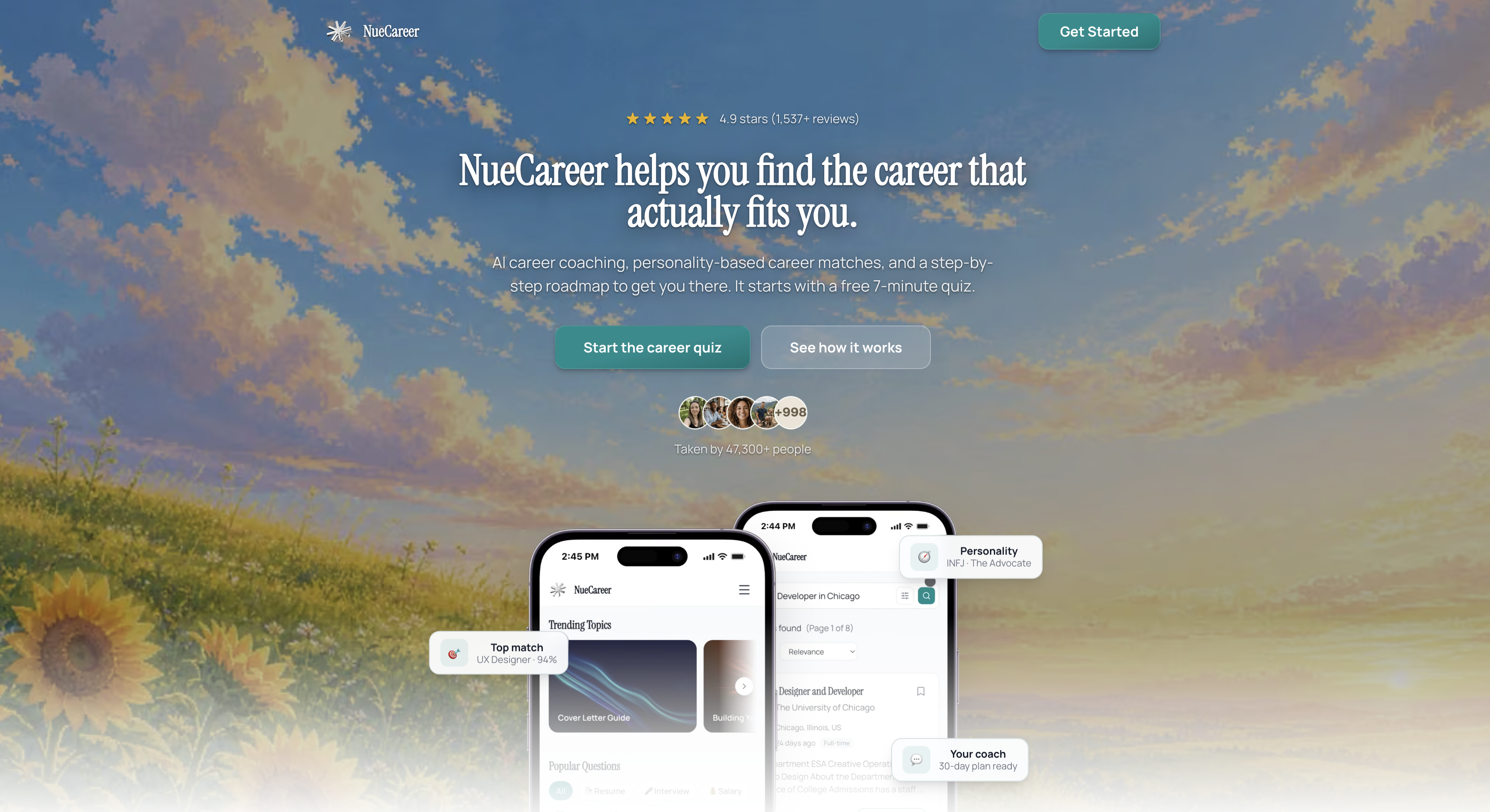
From there, NueCareer gives you a personalized roadmap, 24/7 AI coaching chat, job boards tailored to your target roles, and resume and cover letter tools, so the titles you feed into LinkedIn alerts are ones that fit you. You can explore the full platform or try the free tools, including an ATS resume checker, to get your application materials ready for when alerts start paying off.
Our perspective: alerts are a tool, not a strategy
We see the same pattern often. Someone sets up ten broad alerts, gets forty emails a day, and within a week the emails go unread. The alerts didn't fail. The direction behind them was unclear.

Our view is that a job alert should be the last step of a decision, not the first. First, get honest about your strengths and the kind of work that gives you energy. Then pick two or three target titles. Then write alerts for those titles, in places you can realistically work. When the search is that focused, a quiet inbox isn't discouraging, it's information, and a single relevant email is worth acting on right away.
If you feel behind or lost, you are not. Setting up a small, deliberate set of alerts is a calm, manageable thing to do today, and it creates momentum. Pair it with a plan, and a coach to bounce ideas off, and the search stops feeling like a pile of tabs and starts feeling like progress. We cover that in our guide on optimizing your job search with coaching.
— Shane
FAQ
How do I get LinkedIn to stop sending job alerts?
Open your job alerts list and switch off or delete each saved search; that is where job alert emails originate. Then check Settings, then Notifications, for other job-related email categories you may want to turn off. If you only want fewer messages, change frequency from daily to weekly.
How many job alerts can I have on LinkedIn?
LinkedIn's help page says a member can have up to 20 job alerts at one time. If you can't create a new one, delete alerts you no longer use. Fewer, narrower alerts usually perform better anyway.
Why are my LinkedIn job alerts not showing up?
Most often, email or phone notifications are off, the emails are in a spam folder, or you've reached the alert limit. Check your notification category and delivery settings first. Also confirm the search itself returns recent results.
Can I set different alerts for different locations?
Yes. Each alert saves its own keywords, location and filters, so you can create one for your home city and another for remote roles. Cooper Union's guidance suggests narrowing by location and using separate alerts for different titles, companies or skills.
Should I choose daily or weekly alerts?
Choose daily for roles you want to apply to quickly, and weekly for broad or exploratory searches. Many people mix both: daily on their top one or two alerts, weekly on the rest. You can change this at any time from your alerts list.
Sources
- Job alerts on LinkedIn, LinkedIn Help
- LinkedIn Job Search Participant Guide, U.S. Department of Labor
- Setting Job Alerts on LinkedIn, Cooper Union
- 8 Ways to Narrow Down Your LinkedIn Job Searches, How-To Geek
- How To Create Job Alert on LinkedIn, ITGeared
- How to Create, Edit, and Manage LinkedIn Job Alerts, LinkedHelper
- How to Stop LinkedIn Job Alert Emails, AIEmaily